---
title: How to Design a Component-Based Creative
description: Component-based creatives use components or product ASIN details to generate multiple creatives.
---
[Skip to content](https://knowledge.wbxcommerce.com/how-to-design-a-component-based-creative#main-content)
English
Show submenu for translations
[Customer portal](https://knowledge.wbxcommerce.com/wbx-client-portal?hsLang=en)
![WBX-Logo-KO-Blue-slash.png\]](https://knowledge.wbxcommerce.com/hs-fs/hubfs/WBX-Logo-KO-Blue-slash.png?height=40&name=WBX-Logo-KO-Blue-slash.png)
- [Blog](https://487283.hs-sites.com/blog)
Open main navigation
Close main navigation
- [Blog](https://487283.hs-sites.com/blog)
- English
Show submenu for translations
- [Customer portal](https://knowledge.wbxcommerce.com/wbx-client-portal)
- Go to www.wbxcommerce.com
Go to www.wbxcommerce.com
Welcome to the WBX Commerce Knowledge Base. How can we help you?
- There are no suggestions because the search field is empty.
1. [Help Center](https://knowledge.wbxcommerce.com/?hsLang=en)
2. [Amazon DSP Support](https://knowledge.wbxcommerce.com/amazon-dsp-support?hsLang=en)
3. [Creative](https://knowledge.wbxcommerce.com/amazon-dsp-support?hsLang=en#creative)
# How to Design a Component-Based Creative
## Component-based creatives use components or product ASIN details to generate multiple creatives.
### 
### Objectives
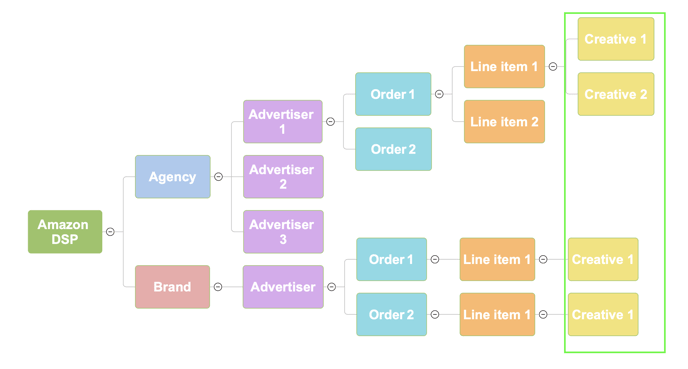
In this how-to article, you will learn how to design a component-based creative.
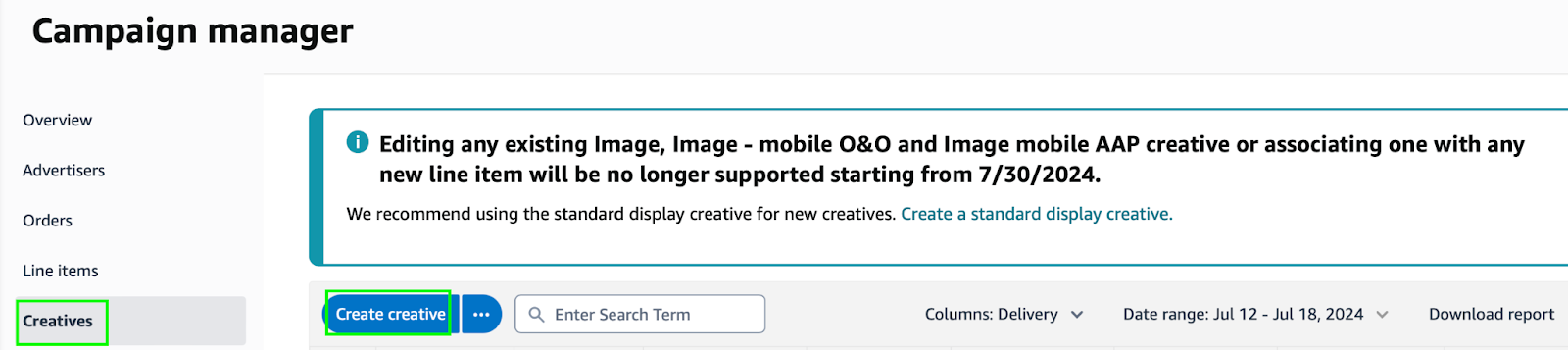
#### Step 1: Navigate to creatives section of Amazon DSP
- Navigate to “Campaign manager.”
- Click on “Creatives” and “Create creative.”
#### 
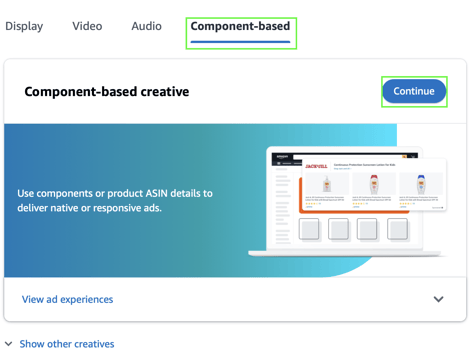
#### Step 2: Choose the type of creative
- Select the component-based option and click "Continue."
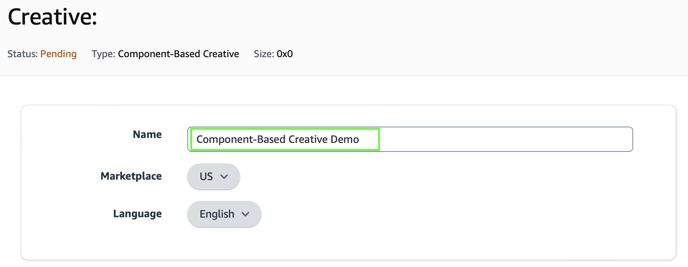
#### Step 3: Name your creative
- Give your creative a name and make sure all other basic settings are correct.
#### Step 4: Add a clickthrough destination
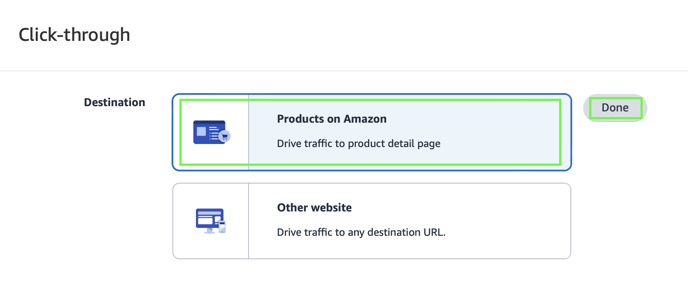
- For component-based creatives, you have two options for a clickthrough: "Products on Amazon" and "Other website." This article will focus on the "Products on Amazon" option.
#### 
#### Step 5: Select products to advertise
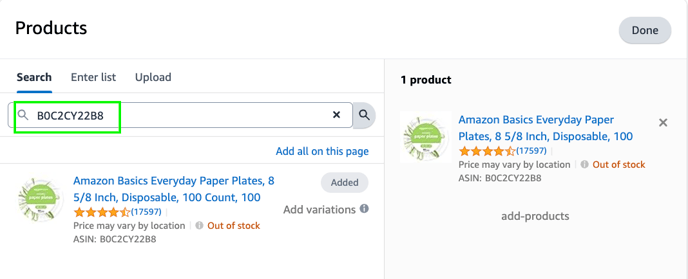
- Enter the ASIN of your product(s) you want to be displayed in your creative. You can search, enter a list, or upload your own. You are able to list one product or multiple.
#### Step 6: Add settings
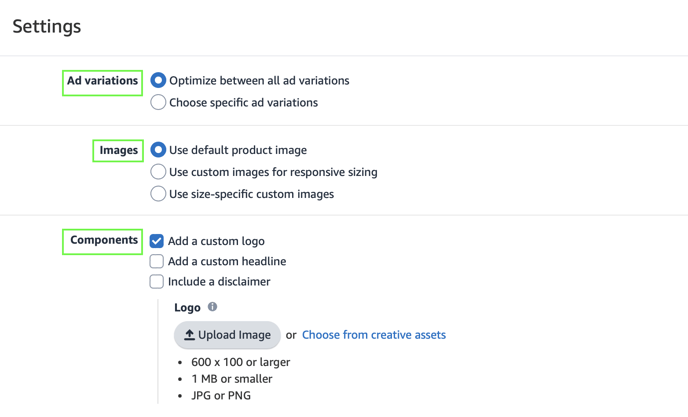
- Choose specific settings for your creative.
#### Step 7: Select placements
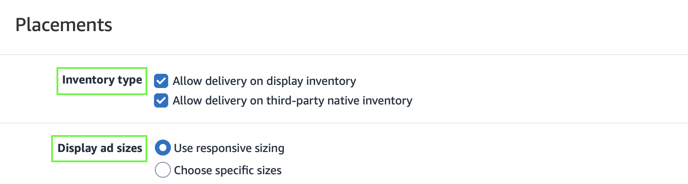
- Choose placements for your creative.
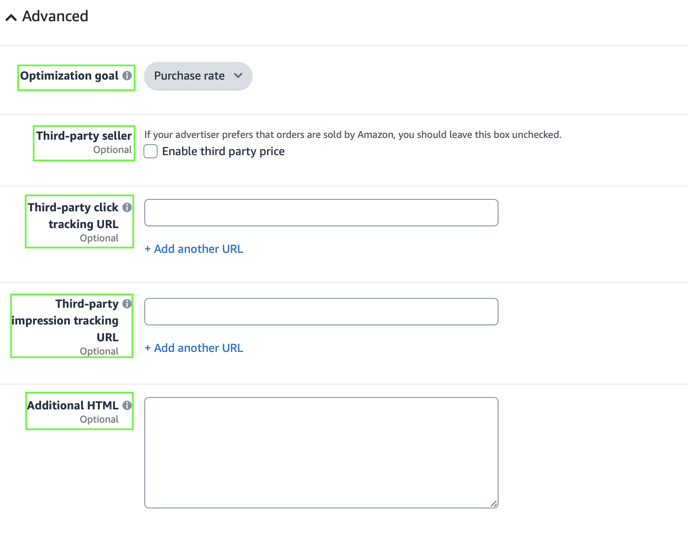
#### Step 8: Add optional, advanced settings
- Amazon gives you the option to add even more advanced settings to your creative. Most are optional.
#### Step 9: Save your creative
- Click "Save" to save your work. The creative will then be ready to be associated with the line item.

### What have you accomplished?
- [Amazon DSP Support](https://knowledge.wbxcommerce.com/amazon-dsp-support?hsLang=en#main-content)
- [DSP Overview](https://knowledge.wbxcommerce.com/amazon-dsp-support?hsLang=en#dsp-overview)
- [Advertiser](https://knowledge.wbxcommerce.com/amazon-dsp-support?hsLang=en#advertiser)
- [Order](https://knowledge.wbxcommerce.com/amazon-dsp-support?hsLang=en#order)
- [Line Item](https://knowledge.wbxcommerce.com/amazon-dsp-support?hsLang=en#line-item)
- [Creative](https://knowledge.wbxcommerce.com/amazon-dsp-support?hsLang=en#creative)
- [Video Ads](https://knowledge.wbxcommerce.com/amazon-dsp-support?hsLang=en#video-ads)
- [Audience](https://knowledge.wbxcommerce.com/amazon-dsp-support?hsLang=en#audience)
- [General Support](https://knowledge.wbxcommerce.com/amazon-dsp-support?hsLang=en#general-support)
- [General WBX Commerce Information](https://knowledge.wbxcommerce.com/general-wbx-commerce-information?hsLang=en)
- [Blog](https://487283.hs-sites.com/blog)
[](https://wbxcommerce.com/)
Copyright © 2026, WBX Commerce