---
title: How to Create Custom Audiences
description: Creating audiences can help you target specific groups of potential and past buyers.
---
[Skip to content](https://knowledge.wbxcommerce.com/how-to-create-audiences#main-content)
English
Show submenu for translations
[Customer portal](https://knowledge.wbxcommerce.com/wbx-client-portal?hsLang=en)
![WBX-Logo-KO-Blue-slash.png\]](https://knowledge.wbxcommerce.com/hs-fs/hubfs/WBX-Logo-KO-Blue-slash.png?height=40&name=WBX-Logo-KO-Blue-slash.png)
- [Blog](https://487283.hs-sites.com/blog)
Open main navigation
Close main navigation
- [Blog](https://487283.hs-sites.com/blog)
- English
Show submenu for translations
- [Customer portal](https://knowledge.wbxcommerce.com/wbx-client-portal)
- Go to www.wbxcommerce.com
Go to www.wbxcommerce.com
Welcome to the WBX Commerce Knowledge Base. How can we help you?
- There are no suggestions because the search field is empty.
1. [Help Center](https://knowledge.wbxcommerce.com/?hsLang=en)
2. [Amazon DSP Support](https://knowledge.wbxcommerce.com/amazon-dsp-support?hsLang=en)
3. [Audience](https://knowledge.wbxcommerce.com/amazon-dsp-support?hsLang=en#audience)
# How to Create Custom Audiences
## Creating audiences can help you target specific groups of potential and past buyers.
### **Objectives:**
An audience refers to a group of users that are targeted for advertising based on specific criteria. You have the ability to create your own audiences for a product/brand on Amazon DSP. After reading this how-to article you will be able to...
- Create a specific audience to target.
- Customize the way that your spread awareness about you product/brand.
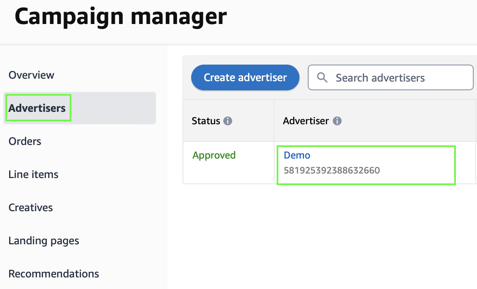
#### **Step 1: Navigate to advertiser section**
- Select the advertiser you want to use.
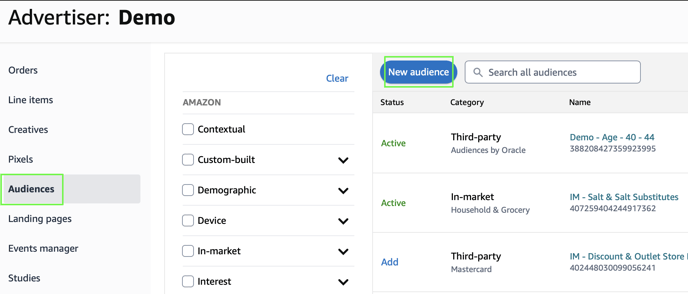
- Select "Audiences" and click "New audience."
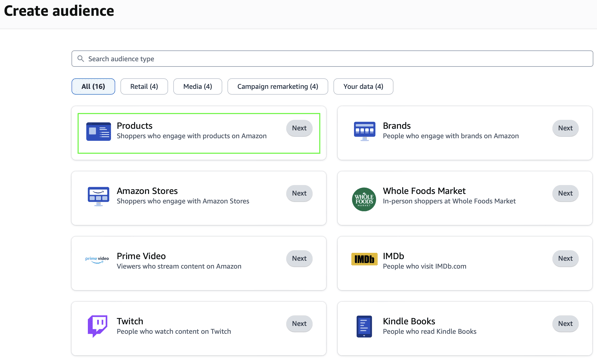
#### **Step 2: Choose audience type**
- Choose from 16 different audience types. This article will use the "Products" option.
#### **Step 3: Enter the product ASIN**
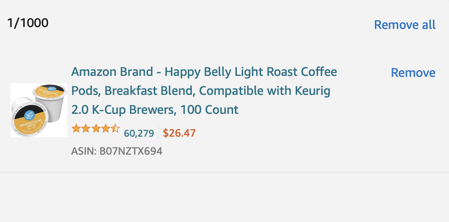
- Enter the ASIN of your product(s). This article will use coffee pods as an example.
- In order to locate the ASIN of a product, click on the link to the page of the product. The ASIN is a 10 digit combination of numbers and letters in the URL.

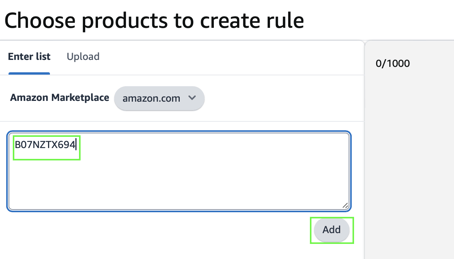
- If the correct ASIN is added, a visual of the product will appear on the right.
#### **Step 4: Select and name audiences**
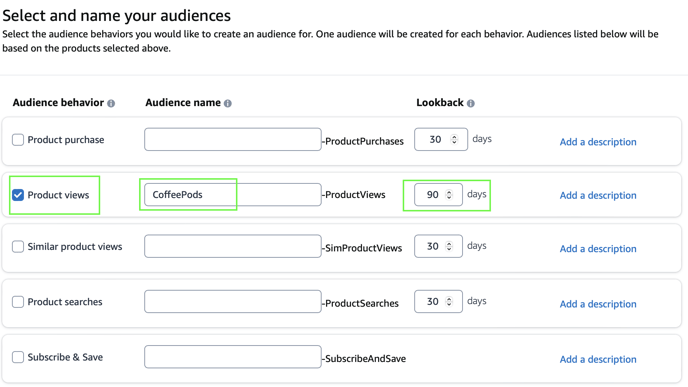
- Choose audience behaviors to target.
- Create a name for each audience. Ex. "CoffeePods-ProductViews."
- Set a lookback period. This is the time period that includes all audience members that preformed the audience behavior.
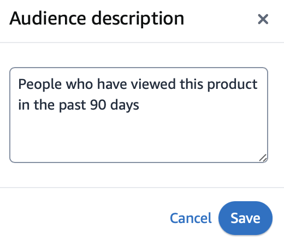
- Click "Add a description" and write short description for your audience.
****
#### **Step 5: Add the audience to your campaign**
- Navigate back to the audiences tab under "Advertiser."
- Search for your new audience in the search bar.
- Add your audience.
### **What have you accomplished?**
After reading this how-to article, you will now be equipped with the skills to...
- Create a unique audience for your product or brand.
- Target groups of people more efficiently.
- [Amazon DSP Support](https://knowledge.wbxcommerce.com/amazon-dsp-support?hsLang=en#main-content)
- [DSP Overview](https://knowledge.wbxcommerce.com/amazon-dsp-support?hsLang=en#dsp-overview)
- [Advertiser](https://knowledge.wbxcommerce.com/amazon-dsp-support?hsLang=en#advertiser)
- [Order](https://knowledge.wbxcommerce.com/amazon-dsp-support?hsLang=en#order)
- [Line Item](https://knowledge.wbxcommerce.com/amazon-dsp-support?hsLang=en#line-item)
- [Creative](https://knowledge.wbxcommerce.com/amazon-dsp-support?hsLang=en#creative)
- [Video Ads](https://knowledge.wbxcommerce.com/amazon-dsp-support?hsLang=en#video-ads)
- [Audience](https://knowledge.wbxcommerce.com/amazon-dsp-support?hsLang=en#audience)
- [General Support](https://knowledge.wbxcommerce.com/amazon-dsp-support?hsLang=en#general-support)
- [General WBX Commerce Information](https://knowledge.wbxcommerce.com/general-wbx-commerce-information?hsLang=en)
- [Blog](https://487283.hs-sites.com/blog)
[](https://wbxcommerce.com/)
Copyright © 2026, WBX Commerce